






Best AI Tools to Save 2-3 Hours Daily in 2026: Pricing, Features, and How to Use Them
Introduction: AI Is No Longer Just a Chatbot, It Is a Time-Saving System
The biggest productivity problem today is not lack of talent. It is the amount of time we waste on repetitive work: typing emails, reading long PDFs, making presentations, analysing Excel sheets, applying for jobs, switching between tabs, and managing meetings.
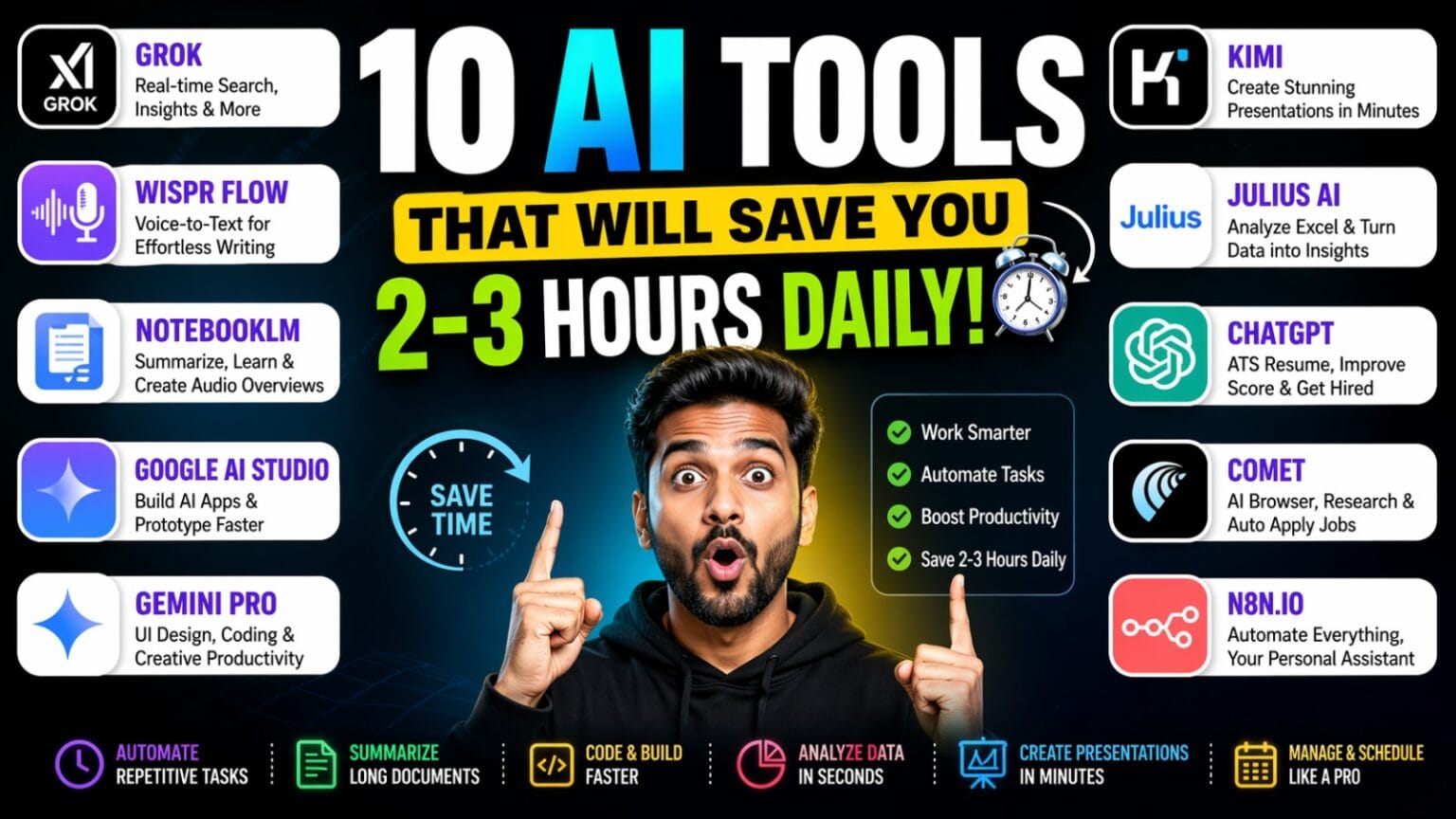
This is where the new generation of AI tools becomes powerful. The right AI tools can help you save 2–3 hours daily by reducing manual effort, speeding up research, turning voice into polished text, building apps faster, converting documents into summaries, analysing data, and automating workflows.
This article compares some of the most useful AI tools for everyday productivity: Grok, Wispr Flow, NotebookLM, Google AI Studio, Gemini Pro, App.multi-style AI app builders, Kimi, Julius AI, ChatGPT ATS Resume Generator, Comet by Perplexity, and n8n.io.
Pricing changes frequently, so treat all pricing as a current reference point and verify before purchase.
Quick Comparison Table: Best AI Tools to Save Time
| Tool | Best For | Main Time-Saving Use | Pricing Snapshot |
|---|---|---|---|
| Grok | Real-time search, opinions, research, explanations | Replaces multi-tab research | SuperGrok plans available via Grok; official plans page lists Grok subscriptions |
| Wispr Flow | Voice-to-text writing | Replaces typing emails, notes, content drafts | Free basic plan; Pro listed at $15/user/month monthly and $12/user/month annual view |
| NotebookLM | Research, PDFs, study, source-based summaries | Converts documents into summaries and audio overviews | Free access available; Pro via Google AI plans / Workspace-style plans |
| Google AI Studio | Building AI apps, prototypes, API workflows | Helps developers and creators build faster | Free tier available; paid Gemini API uses token-based pricing |
| Gemini Pro | Writing, coding, UI, reasoning, productivity | Helps with coding, app ideas, research, UI workflows | Google AI Plus ₹399/month, Pro ₹1,950/month, Ultra ₹24,500/month in India |
| App.multi-style AI builders | Idea-to-app prototyping | Converts ideas into clickable/app-like structures | Pricing depends on platform; verify official page |
| Kimi | Presentations, long-context work, slides | Creates slides from prompts or outlines | Kimi Slides available; pricing page exists but may vary by region |
| Julius AI | Excel and data analysis | Turns spreadsheets into insights and charts | Free plan; Plus $20/month, Pro $45/month, Business $450/month |
| ChatGPT ATS Resume Generator | Resume optimisation and job applications | Tailors resumes for job descriptions | Free plan; Plus $20/month; India has Go/Plus/Pro options |
| Comet by Perplexity | AI browser and web task assistant | Summarises, researches, organises browsing | Comet available as browser; Perplexity Pro listed at $20/month or $200/year |
| n8n.io | Workflow automation | Automates calendar, Telegram, email, apps | Starter listed at €20/month billed annually; pricing based on workflow executions |
Wispr Flow’s pricing page lists a free Basic plan, a Pro plan, and Enterprise, with Basic including weekly word limits and Pro offering unlimited words across Mac, Windows, iPhone, and Android. Julius AI lists Free, Plus, Pro, Business, and Enterprise tiers, with Plus at $20/month and Pro at $45/month. n8n states that all plans include unlimited users, workflows, and integrations, with pricing based on workflow executions.
1. Grok: Best AI Tool for Real-Time Clarity and Fast Research
What is Grok?
Grok is an AI assistant by xAI designed for real-time answers, web search, coding, image generation, and access to information from the web and X. Its biggest strength is not just news. Its real value is clarity.
Most people waste time because they search one thing on Google, then watch a YouTube video, then check X, then read Reddit, then still feel confused. Grok can reduce that entire process into one conversational research flow.
Grok’s official plans page describes it as an AI assistant that can chat, create images, write code, and get real-time answers from the web and X.
Best Use Cases
Grok is useful for:
- Understanding complex topics in simple language
- Checking what people are saying about a topic
- Getting real-time context from the web and X
- Comparing opinions, products, tools, or trends
- Creating content ideas from trending discussions
- Breaking down finance, politics, technology, and pop culture
- Getting quick pros and cons before making decisions
Pricing
Grok has free and paid access options depending on plan availability. The official Grok plans page is the safest source to check live pricing. Third-party pricing pages and xAI API documentation also mention model/API pricing, but consumer subscription pricing should be verified on Grok directly.
Step-by-Step: How to Use Grok to Save Time
Step 1: Open Grok
Go to Grok and sign in.
Step 2: Ask for a simple explanation
Prompt example:
“Explain this topic like I am a beginner. Give me the main issue, why it matters, and what people are saying about it.”
Step 3: Ask for real-world opinions
Prompt example:
“What are the strongest arguments for and against this?”
Step 4: Ask for a content angle
Prompt example:
“Give me 5 viral video angles on this topic for Indian audiences.”
Step 5: Ask for a final summary
Prompt example:
“Summarise this in 5 bullet points with one strong hook.”
Time Saved
A topic that may take 30–45 minutes across Google, YouTube, X, and Reddit can often be understood in 5–10 minutes using Grok.
Who Should Use It?
Grok is best for content creators, students, marketers, journalists, researchers, and anyone who wants quick clarity without opening 20 tabs.
2. Wispr Flow: Best AI Tool for Voice-to-Text Productivity
What is Wispr Flow?
Wispr Flow is a voice dictation tool that helps you write by speaking. It works across devices and apps, which makes it useful for emails, messages, notes, content drafts, and daily writing.
The official Wispr Flow page says Flow is designed to make writing quick and clear with voice dictation and works across apps and devices with synced dictionary, style, and settings.
Best Use Cases
Use Wispr Flow for:
- Writing WhatsApp replies faster
- Drafting emails without typing
- Creating content ideas while walking
- Taking meeting notes
- Brain-dumping blog ideas
- Writing captions, scripts, and comments
- Reducing typing fatigue
Pricing
Wispr Flow lists:
- Flow Basic: Free
- Flow Pro: $15/user/month on monthly pricing; the page also shows $12/user/month when billed annually
- Enterprise: Contact sales
The Basic plan includes weekly word limits, while Flow Pro includes unlimited words per week across Mac, Windows, iPhone, and Android.
Step-by-Step: How to Use Wispr Flow
Step 1: Download Wispr Flow
Install it on your device.
Step 2: Enable microphone access
Give microphone permission.
Step 3: Open any app
Use it inside Gmail, WhatsApp Web, Notion, Google Docs, LinkedIn, or any writing area.
Step 4: Speak naturally
Example:
“Write a polite reply saying I will share the proposal by evening.”
Step 5: Review and send
Wispr Flow converts speech into cleaner text. You can make minor edits before sending.
Time Saved
If you type 20–30 messages or emails daily, Wispr Flow can easily save 30–90 minutes per day.
Who Should Use It?
Best for creators, marketers, founders, students, managers, salespeople, and anyone who writes all day.
3. NotebookLM: Best AI Tool for PDFs, Research, and Audio Learning
What is NotebookLM?
NotebookLM is Google’s AI-powered research and note-taking tool. The biggest advantage is that it works with your sources. You upload documents, PDFs, notes, or links, and NotebookLM answers based on those materials.
Google describes NotebookLM as an AI research tool and thinking partner that can analyse sources, turn complexity into clarity, and transform content.
Best Use Cases
Use NotebookLM for:
- Summarising long PDFs
- Studying research papers
- Preparing for exams
- Understanding annual reports
- Creating podcast-style audio summaries
- Analysing stock market documents
- Turning notes into study guides
- Preparing interview research
Pricing
NotebookLM has free access for users, while NotebookLM Pro / upgraded features are part of Google’s broader AI subscription ecosystem depending on region and account type. Google’s NotebookLM plans page promotes NotebookLM Pro for higher limits, customisation, analytics, and enhanced privacy.
Google AI subscriptions in India list Google AI Plus at ₹399/month, Google AI Pro at ₹1,950/month, and Google AI Ultra at ₹24,500/month.
Step-by-Step: How to Use NotebookLM
Step 1: Open NotebookLM
Sign in with your Google account.
Step 2: Create a new notebook
Name it based on your project, such as “Stock Market Research” or “Exam Notes.”
Step 3: Upload your sources
Add PDFs, notes, reports, Google Docs, or website links where supported.
Step 4: Ask questions
Prompt examples:
“What are the top 5 insights from this report?”
“What are the risks mentioned in this document?”
“Explain this in simple language.”
“Create a study guide from this.”
Step 5: Generate Audio Overview
Use the audio overview feature where available to listen to the material in a podcast-style format.
Time Saved
A 50-page document may take 2–3 hours to read manually. NotebookLM can help you understand the core points in 15–30 minutes.
Who Should Use It?
Students, researchers, investors, content creators, analysts, and professionals who deal with long documents.
Also read – How To Monetize Your AI Voice
4. Google AI Studio: Best AI Tool for AI App Prototyping
What is Google AI Studio?
Google AI Studio is a developer platform for building with Gemini models. It helps users test prompts, build apps, use APIs, and experiment with multimodal AI.
Google AI Studio’s page highlights Gemini models for coding, reasoning, creative writing, and multimodal capabilities.
Best Use Cases
Use Google AI Studio for:
- Creating AI prototypes
- Testing prompts
- Building chatbots
- Generating backend logic
- Testing Gemini API responses
- Building AI-powered tools
- Creating app workflows
Pricing
Google AI Studio has a free tier for developers and small projects. The Gemini Developer API pricing page says the free tier includes limited model access, free input and output tokens, and Google AI Studio access. Paid usage depends on token-based pricing and model selection.
Google’s Gemini API pricing page lists paid token-based pricing for several model options, with prices shown per 1 million tokens depending on input, output, image output, and model category.
Step-by-Step: How to Use Google AI Studio
Step 1: Open Google AI Studio
Sign in with your Google account.
Step 2: Create a new prompt
Choose the model you want to test.
Step 3: Describe your app idea
Prompt example:
“Create a simple AI fitness planner that asks users their goal, age, weight, workout days, and generates a weekly plan.”
Step 4: Test the output
Check if the flow works logically.
Step 5: Ask for code
Prompt example:
“Now convert this into a React frontend with a clean UI.”
Step 6: Export or copy code
Test the code in a compiler, IDE, or local setup.
Time Saved
Instead of spending hours planning the app logic and UI structure, you can get a working starting point in minutes.
Who Should Use It?
Developers, students, startup founders, product managers, and creators who want to build AI-powered prototypes.
5. Gemini Pro: Best AI Tool for UI Design, Coding, and Creative Productivity
What is Gemini Pro?
Gemini is Google’s AI assistant and model ecosystem. Gemini Pro is useful for writing, coding, reasoning, UI generation, brainstorming, and multimodal tasks.
Google’s AI Pro benefits page says Gemini is useful for complex tasks such as coding, logical reasoning, following nuanced instructions, and creative collaboration.
Best Use Cases
Use Gemini Pro for:
- UI design ideas
- Code generation
- Explaining programming errors
- Turning screenshots into interface plans
- Writing backend logic
- Generating landing pages
- Creating content strategies
- Research and brainstorming
Pricing
In India, Google lists:
- Google AI Plus: ₹399/month
- Google AI Pro: ₹1,950/month
- Google AI Ultra: ₹24,500/month
Google AI Plus includes enhanced Gemini access, 200 monthly AI credits, and 200 GB storage. Google AI Pro includes higher access and 5 TB storage.
Step-by-Step: How to Use Gemini for UI and Coding
Step 1: Open Gemini
Sign in with your Google account.
Step 2: Upload a screenshot or describe your UI
Prompt example:
“Create a clean dashboard UI inspired by this screenshot. Make it modern, responsive, and suitable for a SaaS app.”
Step 3: Ask for frontend code
Prompt:
“Now write the frontend code in React with Tailwind CSS.”
Step 4: Test in One Compiler or local IDE
Paste the code and run it.
Step 5: Ask for backend
Prompt:
“Now create a backend using Node.js and Express for login, user data, and dashboard analytics.”
Step 6: Debug
Paste error messages and ask Gemini to fix them.
Time Saved
Gemini helps reduce the blank-screen problem in coding. What might take hours of structuring can start in 10–20 minutes.
Who Should Use It?
Students, developers, designers, founders, freelancers, and anyone building digital products.
6. App.multi-Style AI App Builders: Best for Idea-to-Prototype Workflows
What is App.multi?
Because “App.multi” can refer to different tools or may be region/platform-specific, it is safer to describe this category as AI app builders: tools that help convert a simple prompt into app screens, logic, or a prototype.
Best Use Cases
Use AI app builders for:
- Turning ideas into visual prototypes
- Creating MVP screens
- Testing business ideas
- Building quick internal tools
- Presenting concepts to clients
- Creating no-code or low-code app flows
Pricing
Pricing depends on the exact platform. Before purchasing, check:
- Free plan limits
- Number of projects allowed
- Export options
- Code ownership
- Deployment limits
- Commercial usage rights
Step-by-Step: How to Use an AI App Builder
Step 1: Define your idea clearly
Example:
“I want an app where users can track daily water intake and get reminders.”
Step 2: Enter the prompt
Ask the app builder to create screens.
Step 3: Review screens
Check onboarding, dashboard, settings, and user flow.
Step 4: Ask for changes
Prompt:
“Make it more premium, minimal, and suitable for Indian wellness users.”
Step 5: Export or share
Use it for pitching, client approval, or MVP testing.
Time Saved
You save time before development begins. Instead of explaining ideas for days, you get a visible prototype quickly.
Who Should Use It?
Founders, agencies, freelancers, creators, and non-technical entrepreneurs.
7. Kimi: Best AI Tool for Presentations and Slides
What is Kimi?
Kimi is an AI assistant by Moonshot AI with features such as slides, documents, deep research, sheets, and other productivity tools. Kimi Slides helps turn ideas into slides quickly.
Best Use Cases
Use Kimi for:
- Making PowerPoint-style presentations
- Turning outlines into slides
- Creating pitch decks
- Preparing college presentations
- Creating business proposals
- Converting long notes into structured slides
Pricing
Kimi has a membership pricing page, but pricing may vary by region and feature access. Since the official pricing page did not expose clean plan details in the accessible page text, users should verify the live Kimi membership page before purchasing.
Step-by-Step: How to Use Kimi for PPTs
Step 1: Open Kimi Slides
Go to Kimi and choose Slides.
Step 2: Enter your topic
Example:
“Create a 12-slide presentation on how AI tools can save 2–3 hours daily.”
Step 3: Add audience details
Prompt:
“Make it suitable for students, creators, and working professionals.”
Step 4: Choose tone
Prompt:
“Keep it modern, minimal, and engaging.”
Step 5: Review slide structure
Check intro, problem, solution, tool list, comparison, conclusion.
Step 6: Export or recreate in PowerPoint
Use the generated content as a base and polish branding manually.
Time Saved
A presentation that usually takes 2–3 hours can be drafted in 15–30 minutes.
Who Should Use It?
Students, corporate professionals, consultants, founders, and creators.
8. Julius AI: Best AI Tool for Excel, Data Analysis, and Charts
What is Julius AI?
Julius AI is an AI-powered data analyst that lets users upload data and ask questions in natural language. It can generate insights, charts, forecasts, and summaries.
Julius describes itself as an AI-powered data analyst that turns spreadsheets into charts, forecasts, and insights in seconds without code.
Best Use Cases
Use Julius AI for:
- Excel analysis
- CSV summaries
- Forecasting
- Charts and graphs
- Finding trends
- Cleaning messy data
- Creating business reports
- Preparing presentations from data
Pricing
Julius pricing currently lists:
- Free: $0/month
- Plus: $20/month
- Pro: $45/month
- Business: $450/month
- Enterprise: Contact sales
The free plan includes limited credits, while paid plans unlock more advanced analysis and usage.
Step-by-Step: How to Use Julius AI
Step 1: Open Julius AI
Create an account.
Step 2: Upload Excel or CSV
Upload your data file.
Step 3: Ask a question
Prompt examples:
“What are the top trends in this data?”
“Create a bar chart for monthly sales.”
“Find outliers in this dataset.”
“Give me a business summary in simple language.”
Step 4: Generate visuals
Ask Julius to create charts.
Step 5: Export insights
Use the output in reports, PPTs, or business reviews.
Time Saved
A basic Excel analysis that takes 1–2 hours can often be completed in 10–20 minutes.
Who Should Use It?
Students, analysts, marketers, business owners, consultants, and anyone scared of Excel.
9. ChatGPT ATS Resume Generator: Best AI Workflow for Job Applications
What is a ChatGPT ATS Resume Generator?
This is not necessarily one separate product. It is a workflow where you use ChatGPT to rewrite your resume for ATS systems and specific job descriptions.
ChatGPT offers free and paid plans. OpenAI’s pricing page lists Free, Go, Plus, Pro, Business, and Enterprise-style plans depending on region. ChatGPT Plus is listed at $20/month in OpenAI’s help documentation.
Best Use Cases
Use ChatGPT for:
- Resume rewriting
- ATS keyword optimisation
- Job description matching
- Cover letters
- LinkedIn summaries
- Interview preparation
- Career profile positioning
Pricing
OpenAI’s ChatGPT pricing varies by country. In India, reports and official product pages have included lower-cost plans like ChatGPT Go along with Plus and Pro. Reuters reported ChatGPT Go in India at ₹399/month, with Plus at ₹1,999/month and Pro at ₹19,900/month.
Step-by-Step: How to Use ChatGPT for ATS Resume Optimisation
Step 1: Paste the job description
Prompt:
“I am applying for this role. Analyse this job description and extract the most important ATS keywords.”
Step 2: Paste your resume
Prompt:
“Now compare my resume with this JD and tell me what is missing.”
Step 3: Ask for an improved version
Prompt:
“Rewrite my resume summary and experience bullets to match this job description naturally. Do not add fake experience.”
Step 4: Ask for ATS formatting
Prompt:
“Format this into a clean ATS-friendly resume with simple headings, measurable achievements, and no graphics.”
Step 5: Create a PDF
Copy into Google Docs or Word and export as PDF.
Time Saved
Tailoring one resume manually can take 45–60 minutes. With ChatGPT, the first draft can be created in 10–15 minutes.
Who Should Use It?
Job seekers, students, professionals switching careers, freelancers, and anyone applying to multiple jobs.
10. Comet by Perplexity: Best AI Browser for Research and Web Tasks
What is Comet?
Comet is Perplexity’s AI browser. It works like a browser with an AI assistant built in to help research, summarise, organise, and perform web-based tasks.
Perplexity describes Comet as a browser that acts as a personal assistant and can help automate tasks, research the web, organise email, and more. The official Comet page says it is available for Mac, Windows, iOS, and Android.
Best Use Cases
Use Comet for:
- Summarising webpages
- Comparing tabs
- Researching topics
- Organising browser-based work
- Planning trips
- Managing emails
- Shopping research
- Job search workflows
Pricing
Comet access has changed over time. Perplexity’s pricing page lists Perplexity Pro at $20/month or $200/year, Enterprise Pro at $40/month per seat or $400/year, and Enterprise Max at $325/month per seat or $3,250/year. The Comet page currently focuses on download and availability rather than showing a separate Comet-only price in accessible text.
Step-by-Step: How to Use Comet
Step 1: Download Comet
Install it on your device.
Step 2: Open your research tabs
Search normally or open multiple links.
Step 3: Ask Comet to summarise
Prompt:
“Summarise all open tabs and give me the top 5 points.”
Step 4: Ask for comparison
Prompt:
“Compare these pages and tell me which one is more reliable.”
Step 5: Ask for action
Prompt:
“Create a short LinkedIn post based on this research.”
Time Saved
Comet reduces browser chaos. Instead of manually reading 10 tabs, you can get structured summaries and next actions quickly.
Who Should Use It?
Researchers, content creators, students, job seekers, founders, and professionals who work in browsers all day.
11. n8n.io: Best AI Tool for Workflow Automation
What is n8n?
n8n is a workflow automation platform that connects apps and services. It can automate tasks between Telegram, Google Calendar, Gmail, Google Sheets, Notion, Slack, CRMs, and hundreds of other tools.
n8n describes itself as a workflow automation platform combining AI capabilities with business process automation, allowing users to build visually, go deep with code, and connect to anything.
Best Use Cases
Use n8n for:
- Telegram personal assistant
- Meeting reminders
- Auto calendar scheduling
- Lead capture automation
- Email alerts
- Content publishing workflows
- CRM updates
- Google Sheets automation
- AI agents connected to business workflows
Pricing
n8n pricing states that all plans include unlimited users, workflows, and integrations, with pricing based on monthly workflow executions. The Starter plan is listed at €20/month billed annually with 2.5K workflow executions and unlimited steps.
Step-by-Step: How to Use n8n for a Personal Assistant
Step 1: Create an n8n account
Choose cloud or self-hosted.
Step 2: Create a new workflow
Start with a trigger.
Step 3: Add Telegram trigger
Example: a message like “Schedule meeting with Rahul tomorrow.”
Step 4: Connect Google Calendar
Allow n8n to check available time slots.
Step 5: Add logic
Use conditions such as date, time, location, and meeting duration.
Step 6: Add notification
Send a Telegram confirmation:
“Meeting scheduled for tomorrow at 4 PM.”
Step 7: Add optional AI step
Use an AI model to interpret natural language.
Time Saved
n8n can save time every day because it automates repeated workflows. Once set up, it keeps working in the background.
Who Should Use It?
Founders, marketers, operations teams, freelancers, creators, agencies, and productivity-focused professionals.
Which AI Tool Should You Choose First?
If You Write a Lot
Start with Wispr Flow or ChatGPT.
If You Study or Research
Start with NotebookLM and Grok.
If You Make Presentations
Start with Kimi.
If You Work with Data
Start with Julius AI.
If You Build Apps or Code
Start with Gemini Pro and Google AI Studio.
If You Browse and Research All Day
Start with Comet by Perplexity.
If You Want Full Automation
Start with n8n.io.
Best AI Tool Stack to Save 2–3 Hours Daily
For most users, the best stack is not all 10 tools. It is 3–5 tools based on your workflow.
Best Stack for Students
- NotebookLM for PDFs
- Gemini for explanations
- Kimi for presentations
- ChatGPT for resumes and assignments
Best Stack for Creators
- Grok for trending ideas
- Wispr Flow for fast drafting
- NotebookLM for research
- Kimi for pitch decks
- Comet for web research
Best Stack for Job Seekers
- ChatGPT for ATS resume
- Comet for job research
- Grok for company context
- Wispr Flow for cover letter drafts
Best Stack for Business Owners
- Julius AI for data
- n8n for automation
- Gemini for planning
- Kimi for decks
- Comet for research
Final Verdict: AI Tools Are Not About Laziness, They Are About Leverage
The best AI tools do not replace your brain. They remove the friction around your brain.
Typing faster is good.
But speaking and letting AI write is better.
Reading is good.
But asking questions from your PDFs is faster.
Making slides manually is possible.
But generating the first draft saves hours.
Analysing Excel is important.
But asking AI to find the pattern gives you speed.
The real advantage of AI is not just automation. It is mental space.
If you want to save 2–3 hours daily, do not try every AI tool at once. Pick one pain point: typing, research, presentations, data, job applications, browsing, or scheduling. Then choose the tool that solves that pain directly.
That is how AI becomes useful.
Not as hype.
Not as a trend.
But as a daily productivity system.
Subscribe to our YouTube Channel The Logic Stick for more video insights